Pages

Showing posts with label Apple iPhone. Show all posts

Wednesday, 14 October 2020

Apple iPhone 12 event in under 12 minutes

 Oct 13, 2020

Apple’s iPhone 12 event just wrapped and it revealed the iPhone 12, iPhone 12 mini, iPhone 12 Pro and iPhone 12 Pro Max.


Apple’s iPhone 12 event just wrapped and it revealed the iPhone 12, iPhone 12 mini, iPhone 12 Pro and iPhone 12 Pro Max.

Apple’s newest smartphones have a new design with flat edges, and they all support 5G wireless networks. Apple also unveiled the HomePod mini, a smaller and more affordable model in its smart speaker lineup. Read more: https://bit.ly/2GLO9oR

https://www.youtube.com/watch?v=vpw_z9vBPAE&feature=youtu.be

Thursday, 3 October 2019

The Cell Phone Radiation Scandal: Top Brands are Lying About Safety

As the controversy over 5G networks and cell phone radiation continues, it turns out that manufacturers aren’t playing fair. 


August 23, 2019

cell phone with skull and crossbones

In a groundbreaking expose by the Chicago Tribune, popular phones by Apple, Samsung, and Motorola were found to produce radiation that exceeds federal limits. The new data has forced the FCC to investigate – and could be a major blow to the industry.
The question has been asked about as long as mobile phones have existed: “Are they safe?”
Manufacturers and service providers have assured us time and time again that radiofrequency radiation is nothing to worry about, but the Federal Communications Commission (FCC) did eventually set limits.
For a cell phone to be approved for sale, it must undergo FCC-approved testing to determine the amount of radiofrequency radiation that will be absorbed by organic matter. This gives us an idea of just how much radiation users will experience, day in and day out. The current limit for cell phone radiation is 1.6 watts per kilogram.
1.6 W/kg. Keep that number in mind as we continue…
Journalists at the Tribune wanted to know if this threshold was truly being observed by manufacturers, so they funded their own testing to find out. They began with Apple’s iPhone 7. The test was conducted at a lab accredited by the FCC to perform the tests according to federal guidelines.
To conduct the tests, phones were placed under a tub containing liquid that simulates human tissue. The phone was then powered on and a call was placed so that it was operating at full power. For the next 18 minutes, a robotic sensor took over 275 measurements.
The phone was tested twice, once at 5 millimeters away from the liquid and once at 2mm away. The second test, they explained, was to simulate a phone being stored in clothing, like pockets. They measured this by cutting out pieces of dress shirts, T-shirts, jeans, track pants, and undergarments and using them to find the appropriate distance.
The iPhone 7 was tested in August of 2018, followed by 11 more phones in October: 2 more iPhone 7s, an iPhone 8, an iPhone X, an iPhone 8 Plus, a Galaxy S9, a Galaxy S8, a Galaxy J3, a Moto e5 Play, a Moto g6 Play and a Vivo 5 Mini.
The Tribune reports that the results of the first iPhone 7 test were so high that they wanted to test two more to be sure.
The results were staggering.
Standard cell phone radiation data
With a federal limit of 1.6 W/kg, nearly half of the phones failed the test at 5mm. At 2mm, representing a phone kept in your clothing, all but one failed. If the tests are accurate, this would be a catastrophic failure of FCC oversight, and severe ineptitude or diabolical deceit by the manufacturers (except Vivo, who was well within guidelines).
Apple, understandably, was not happy with the results. After receiving the report, they complained that the results were invalid because they were not performed properly. They failed to specify the problem, but the Tribune decided to repeat tests on the iPhones, this time activating sensors meant to reduce power during use. They added a 4th iPhone 7 so there could be no mistake.
Still, the results were disturbing.
Modified cell phone radiation data
While the scores generally dropped, 6 of the 7 Apple phones failed to meet radiation standards at 5mm. At 2mm, every single phone manufactured by Apple produced radiation above the legal limit.
The FCC has approved all of these phones and claims that they will “never exceed” radiofrequency radiation of 1.6 W/kg. Clearly something is wrong. To avoid any kind of scrutiny, the Chicago Tribune used RF Exposure Lab, located in San Marcos, California. The lab is accredited by the FCC to conduct these tests and has been conducting radiation tests for FCC approval for nearly 15 years.
Owner and former engineering director for Qualcomm Jay Moulton conducted the tests personally, ensuring that they met all FCC standards.
But when it comes time for companies to prove that their products are safe, the system is deeply flawed. Manufacturers get to choose their own labs for testing, which leaves room for at least the appearance of impropriety. Additionally, manufacturers are allowed to test the phone as far away as 25mm, or about an inch. Tribune author Sam Roe speculates that this is due to timing.
The testing standards were adopted in the 1990s, when people frequently carried cellphones on belt clips,” he wrote.
For the tests conducted by the Tribune, phones were tested at the same distances reported by the manufacturers. Apple claims that their tests are conducted at 5mm. Samsung phones are tested at 10mm or 15mm, depending on the model. And while the 2mm distance was closer than the FCC requires, it may be the distance most accurate when it comes to the way people store cell phones.
7 years ago, the Government Accountability Office recommended that the FCC revisit the testing requirements and exposure limits. They specifically mentioned that, because phones are most often held against the body, it was impossible for the current testing to demonstrate that cell phone radiation levels were within the federal limit.
Earlier this month, the FCC announced that the standards were sufficient and did not need to be changed. But these guidelines were established back in 1996.Cell phones through the years
This was just after we were married and before losing Ty’s dad to dangerous cancer treatments. Few people had cell phones back then. The phones that were around were bulky and had poor battery life. No one texted, and the idea of children owning or using cell phones was absurd.
To put things in perspective, the Nokia 3310 (the phone you played “snake” on) was first launched on September 1st, 2000. The way people used cell phones in 1996 is absolutely nothing like the way we use them now. Even the current testing methods exclude eyes and ears, which may be most vulnerable to the effects of radiation. Still, the FCC has done nothing.
But the new data discovered by the Tribune cannot be ignored. After receiving a copy of the report, the FCC agreed to conduct their own testing to determine if the phones are not in compliance. “We take seriously any claims on non-compliance with the RF (radiofrequency) exposure standards and will be obtaining and testing the subject phones for compliance with FCC rules,” FCC spokesman Neil Grace said.
Of course, the FCC has a long and cozy history with the communications industry. The top lobbying groups for the wireless industry have been led by former FCC chairmen and commissioners. Tom Wheeler, the last FCC commissioner, was the president of two different trade groups representing the wireless industry before joining the FCC.
Wheeler’s predecessor, Julius Genachowski, took a lucrative job with The Carlyle Group (an asset management company working with telecom and media companies) after leaving the FCC. And the current commissioner, Ajit Pai, is no better. A former Associate General Counselor for Verizon, Pai immediately tried to overturn net neutrality rules – a top priority for his former employer.
Pai’s FCC has helped to establish laws and rules that prevent states, cities, and counties from regulating technology companies for health and safety reasons. This is likely to help fast track the new 5G networks that have already been deployed in select cities.
Although no safety studies have been conducted on 5G radiation in the U.S., research compiled by the European Union has found health risks, including cancer. Dozens of cities, towns, and even nations have seen major pushback from their citizens, citing the health risks.
When it comes to the technology we already have, it seems the game is rigged. Antiquated guidelines established at the dawn of the cellular age are still in place. Regulators, in bed with the industry, are making concessions designed to help the wireless industry. And now it seems that cell phone manufacturers themselves have been scamming us.
Sure, it’s possible that these results are an anomaly, and that the phones in question are within the FCC radiation limits. But it’s unlikely. Nearly all of the Apple phones failed – even with the newer test. Samsung’s Galaxy S8, which sold over 5 million units in its first month, had radiation levels more than 5 times the legal limit.
Our system is broken, and it seems that regulators need to have the evidence spoon-fed to them in order to even look into it (just look at the new evidence regarding fluoridated water).
So, what can we do? We can write our elected officials, who are responsible for nominating and confirming the industry-friendly regulators. But there are other steps we can take:
#1. Turn off your phone when not in use.
#2. Never store your phone in pockets or other clothing,
#3. Avoid using Bluetooth headsets.
#4. Avoid using your cell phone in the car or other vehicles.
#5. Use the speaker or regular headphones whenever possible so your phone is not pressed against your body.

[-] Sources and References


https://thetruthaboutcancer.com/cell-phone-radiation-scandal/

Monday, 4 February 2019

The Phones Emitting the Most Radiation

For most people nowadays, their smartphone is within arm's reach 24 hours a day. It's in their pocket while they're at work, it's in their hand on the train ride home and it's on their bedside table as they go to sleep.

by Martin Armstrong, Feb 4, 2019

 With this level of proximity and usage, many can't quite shake the niggling feeling that they might be risking damage to themselves in the long run. While conclusive longitudinal research on the effects of cell phone radiation is still hard to come by, for those looking to hedge their bets, this infographic shows the phones that emit the most radiation when held to the ear while calling. 

The German Federal Office for Radiation Protection (Bundesamt für Strahlenschutz) has a comprehensive database of smartphones - new and old - and the level of radiation they emit. Following the criteria set for this chart (see footnotes), the current smartphone creating the highest level of radiation is the Mi A1 from Chinese vendor Xiaomi. Another Chinese phone is in second place - the OnePlus 5T. In fact, the two companies are represented heavily in this list, with 8 of the top 16 handsets being made by one of them. Premium Apple phones such as the iPhone 7 and the recently released iPhone 8 are also here to be seen, though, as are the latest Pixel handsets from Google.

While there is no universal guideline for a 'safe' level of phone radiation, the German certification for environmental friendliness 'Der Blaue Engel' (Blue Angel) only certifies phones which have a specific absorption rate of less than 0.60 watts per kilogram. All of the phones featured here come in at more than double this benchmark. 

Infographic: The Phones Emitting the Most Radiation | Statista

Having already revealed the current phones which emit the most radiation, this chart looks at the opposite end of the scale. While conclusive longitudinal research on the effects of cell phone radiation is still hard to come by, for those looking to minimize the risks, this list may be useful. 

The German Federal Office for Radiation Protection (Bundesamt für Strahlenschutz) has a comprehensive database of smartphones - new and old - and the level of radiation they emit when held to the ear during a call. Following the criteria set for this chart (see footnotes), the smartphone creating the lowest level of radiation is the Samsung Galaxy Note8 - with a specific absorption rate of 0.17 watts per kilogram. In fact, Samsung handsets feature prominently, with half of the top ten coming from the South Korean company. This contrasts starkly with their major rival Apple. Two iPhones occupy a place in the list of phones which emit the most radiation, compared to none from Samsung.

While there is no universal guideline for a 'safe' level of phone radiation, the German certification for environmental friendliness 'Der Blaue Engel' (Blue Angel) only certifies phones which have a specific absorption rate of less than 0.60 watts per kilogram. All of the phones featured here are well under this benchmark.


Database of smartphones models covered:  
http://www.bfs.de/SiteGlobals/Forms/Suche/BfS/DE/SARsuche_Formular.html

Friday, 17 August 2018

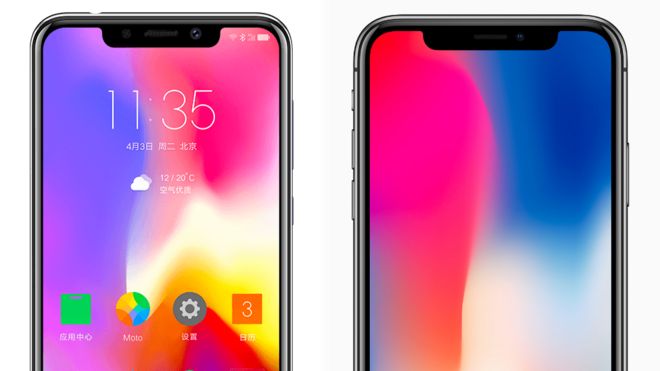
Motorola phone 'brazen copy' of iPhone X

Smartphone brand Motorola has been criticised for revealing a "shameless" copy of the iPhone X as its new model.

16 August 2018

Motorola P30 and iPhone X
Image captionSpot the difference: the P30 and iPhone X

Many phone-makers have copied the look of the iPhone X, which has a smaller bezel around the screen and a "notch" at the top that houses a camera.
However, reviewers said the new Motorola P30 was a "brazen" and "egregious" rip-off of Apple's flagship device.
Lenovo, which owns the Motorola brand, has not yet responded to the criticism.
Motorola was a pioneer in the mobile phone industry, but its sales fell in the smartphone era and its handset division was sold to Google in 2012.
The division was then sold to Chinese computer firm Lenovo in 2014, where it has continued to produce smartphones running the Android operating system.

Motorola P30 and iPhone X
Image captionBoth phones feature a 'notch' at the top of the screen

Commenting on the similarity between the Motorola P30 and the iPhone X, technology blogger Marques Brownlee called it the "most shameless rip yet".
News site Mashable said Motorola "even went so far as to adorn the screen with a wallpaper that's a dead ringer for Apple's default wallpaper".
News and reviews site Technobuffalo said the design was an "egregious clone" that was "nearly impossible to distinguish" from the iPhone X.
Tech news site The Verge pointed out that Google's image recognition algorithms described photos of the P30 as "iPhone".
"The growing number of identikit smartphone designs is a depressing trend and it's little wonder consumer apathy is on the rise and replacement rates are slowing," said analyst Ben Wood from the CCS Insight consultancy.
"One starts to wonder whether Jony Ive's design group at Apple has become the de facto owner for the reference design for all high-end smartphones.
"Phone makers need to innovate and find ways to differentiate if they want to maintain consumer desire to upgrade their phones," he told the BBC.
On Thursday, Lenovo posted an operating profit for the first quarter - after making a loss the previous year.
Bloomberg attributed the rise to an increase in sales, but also cost-cutting measures in its mobile division.
Lenovo plans to sell the Motorola P30 in China, but has not announced its availability in other countries. The device is expected to cost about $350 (£275) - less than half the price of Apple's flagship device.

https://www.bbc.com/news/technology-45208546

Thursday, 21 September 2017

Forget the $1,000 iPhone X — Apple’s best iPhone is now its least expensive, at just $350

Apple introduced a new iPhone on Tuesday that looks incredible, is faster than ever, and… is outrageously expensive. The base model costs $1,000. One thousand dollars!
We’re still talking about phones, right? This is a phone?
iPhone X
Yes, this is still a phone. A very pretty phone! But just a phone.
 
Justin Sullivan/Getty
Assuredly, millions of people will excitedly plunk down a full stack for the iPhone X. It’s more than just a phone – it’s a status symbol. I get it. It’s a mucI want something affordable, powerful enough, and long-lasting. I’m not trying to impress anyone, nor am I the kind of person who lives on the bleeding edge of tech gadgets. That’s why I was excited to see that, alongside the announcement of the iPhone X, Apple quietly made the iPhone SE $50 less expensive.
iphone se
The adorably vintage-looking iPhone SE.
 
Business Insider/Steve Kovach
At $350 to start, with 32 GB of storage and the internals of an iPhone 6S, the iPhone SE is the perfect Honda Civic of smartphones.
    It’s beyond capable in terms of horsepower, though it’s not going to blow anyone away. The chip inside of it, an Apple A9 CPU, is the same chip that powers Apple’s iPhone 6S, 6S Plus, and the most recent iPad models. The price is affordable when compared to most smartphones, and it’s especially low compared to other iPhone models. The new iPhone 8 starts at $700 (to say nothing of the iPhone X’s high price tag). Its rear camera is on par with all modern smartphones (once again, the camera is pulled from the iPhone 6S). It runs iOS, the most reliable, user-friendly smartphone operating system on the planet. It has a headphone jack!
The one limitation of the iPhone SE – its relatively small size – is actually something I personally prefer. I don’t watch movies or TV shows on my phone for the most part, and I’m not someone who buys the Plus versions of iPhones.
Apple iPhone lineup
Apple iPhone lineup
Of course, if you’re looking for something with a slightly larger, prettier screen, the iPhone 6S is a $100 step up. Perhaps you prefer the rounder design? There are a variety of options for you in the iPhone line, seen above.
But if you’re anything like me, the perfectly utilitarian, adorably vintage-looking, shockingly affordable iPhone SE is the best iPhone option by a mile.h more affordable version of a Ferrari. Fine.

Friday, 15 September 2017

Apple slashes prices of iPhone 7, 6 and SE

If you find the iPhone 8 models too pricey, you may want to consider an older iPhone model.

Wednesday, 13 Sep 2017
The iPhone 6s is among the older models that have received price reductions with the announcement of the new iPhone 8 and iPhone X. — Apple


Apple has cut the price of its models that were released in 2016 and 2015. The prices of all the iPhone 7 and iPhone 6 models have been slashed by RM450.
Apple has reduced the prices for the previous generation iPhones ahead of the availability of the latest models.
For instance, the iPhone 7 Plus (128GB) which was previously priced at RM4,299 is now RM3,849.
The price cuts of the smaller-sized iPhone SE (both the 32GB and 128GB models) were the smallest – RM200.

http://www.thestar.com.my/tech/tech-news/2017/09/13/apple-reduces-price-of-iphone-7-6-and-se/


Tuesday, 29 August 2017

How to improve iPhone & iPad battery life

Poor iOS battery life got you down? Here, we show you 38 simple tricks to get more battery life out of your iPhone or iPad running iOS 10.
By  | 07 Aug 17


One of the inescapable truths of modern technology is its penchant for regularly sucking from the national grid, like some kind of crazed electronic vampire. You might consider your iPhone or iPad to be the most amazing technology in the world, but they're little more than metal-and-glass slabs when out of juice. Thankfully, it doesn't have to be like that.
In this giant tutorial article we've got some brilliant battery-saving tricks and tips that will help you keep your battery running all day long, whether you're on an iPhone or a massive iPad Pro.
Bear in mind, of course, that there might be something wrong with your iPhone's battery. Don't worry though, as in November 2016 Apple announced a free battery replacement programme for the iPhone 6s.
To find out if your iPhone has been recalled, see our guides to Apple's product recalls and free repair programmes and how to get Apple to replace your iPhone.
Assuming that's not the case, here are the best ways to improve your iPhone or iPad's battery life, from system-wide settings worth tweaking to third-party apps that you should stop - or start - using in order to preserve battery life. We've updated this article for iOS 10, but many of the tips work for iOS 9, iOS 8 and iOS 7.


Don't bother quitting apps

Don't bother quitting apps
Let's start by dispelling a battery-saving myth.
iPhone users tend to quit apps we aren't using as it seems like a logical way to stop them sucking away at the battery. (To quit an app, double-tap the Home Button and swipe up on the app you want to close.)
But apparently, this isn't such a good idea after all. Apple Store Genius Scotty Loveless explains that when you close an app you take it out of RAM, this means that when you open it again the iPhone has to load it back into memory. "All of that loading and unloading puts more stress on your device than just leaving it alone," he writes.
Indeed, Apple itself - in the person of software chief Craig Federighi - has confirmed that closing apps doesn't do anything for battery life. 
Tim Cook was asked in an email, "Do you quit your multitasking apps frequently and is this necessary for battery life? Just wanting you to put this controversy to rest!" And Federighi stepped in to reply "I know you asked Tim, but I'll at least offer my input: No and No."
Loveless adds that our fears that apps are draining battery life even when we aren't using them are unfounded, as they will only update in the background if they are set to in Background App Refresh.
"Unless you have enabled Background App Refresh, your apps are not allowed to run in the background unless they are playing music, using location services, recording audio, or the sneakiest of them all: checking for incoming VoIP calls, like Skype. All of these exceptions, besides the latter, will put an icon next to your battery icon to alert you it is running in the background," he explains.

Turn on Low Power Mode

Turn on Low Power Mode
In iOS 10 (and iOS 9), there's a feature called Low Power Mode that reduces overall power requirements and makes your battery last longer. Apple claims the mode will allow you to gain three extra hours of battery life from your iPhone.
Low Power Mode isn't a default option that happens automatically in the background. It will be offeredautomatically when you hit 20% remaining power: you'll see a warning flash up and the option to turn on Low Power Mode. Do so and you will notice that the battery indicator turns orange rather than red (or the green it would be if you had plenty of power). The mode will be switched off again automatically when you charge past 80%.
Over on Birchtree they have run testsand found that "on average, my battery was at 17% at midnight in normal mode, but 49% in Low Power Mode."
If you want, you can enable Low Power Mode without waiting for your iPhone to reach 20%. Go to Settings > Battery and turn on Low Power Mode.
When Low Power Mode is on it will reduce power consumption, stopping Mail fetch, Hey Siri, background app refresh, automatic downloads, and some visual effects. We actually have all those features turned off on our iPhone already, and yet the Low Power Mode still seems to have an effect.
NOTE: This tip is for iPhone, not iPad. iPads don't get Low Power Mode.

Update iOS

Update iOS
Updating iOS is a useful all-purpose fix when you're experiencing minor problems with an iPad or iPhone; Apple uses its regular (free) operating system updates to roll out fixes for vulnerabilities, bugs and glitches, and it's entirely possible that an issue you're experiencing can be fixed with a simple OS update. This includes battery problems.
iOS 10.2.1, for instance, is known to resolve a known battery/charging issue for iPhone 6, iPhone 6s and the Plus variants of both.

Does your battery need repairing or replacing?

Does your battery need repairing or replacing?
iPhone batteries don't last forever, and the time will come when your device needs to be looked at by a specialist. We'd try the tips in this article before making an appointment with an Apple Genius, however.
A recent iOS update helps you to get more accurate advice on when your iPhone's battery is coming to the end of its life. As well as the fix for the battery/charging issue for iPhone 6 and iPhone 6s, iOS 10.2.1 brings in a useful warning system for when your device's battery needs to be repaired or replaced. The message reads 'Your battery needs service'.
If your battery is the problem, here's how to fix a faulty iPhone battery.

Check Battery Usage

Check Battery Usage
A quick way to check whether there really is a problem with the battery in your iPhone or iPad is to head over to Settings > General > Battery and wait for your Battery Usage report to load up. This will let you check your Usage and Standby times.
The Usage time is how long you've used the device for since the last charge, and Standby indicates the total time that's passed since the last charge. Expect usage to be a lot lower than Standby (unless you've been using your iPhone non-stop since unplugging it).
To test your battery, make a note of the usage and standby times and then put the device to sleep by pressing the on/off switch at the top. After five minutes check the change in the times.
If your device is working correctly, the usage time should have have gone up by less than a minute, while the standby time should have gained five minutes. If you see more than a minute increase on the Usage time, something is stopping your phone from sleeping and you have a battery drain problem.
According to Scotty Loveless, chances are that an app or your email settings are responsible for the drain rather than the battery or the iPhone being at fault.
Try the following tips to stop unnecessary drain when your iPhone or iPad isn't in use. We also have a number of tips that will increase battery life in situations when you need the extra boost.

Which apps are killing the battery?

Which apps are killing the battery?
In iOS 10, 9 and 8 you can see exactly which apps are the biggest battery drainers. Go to Settings > General > Battery and scroll down to see which of your apps were the biggest battery guzzlers in the past 24 hours, or last seven days.
Expect to see Facebook up the top; Safari also seems to be quite draining. But obviously these are also frequently used apps.
Note any apps that highlight background activity as battery-draining - perhaps you need to address what this background activity is. We discuss this below.
Speaking of Facebook...

Facebook and other apps

Facebook and other apps
Facebook has been accused of being a battery hog on the iPhone and iPad in iOS, and even Facebook itself has admitted that the iOS app uses a lot of resources in the background.
A report that emerged in February from The Guardian claims that uninstalling the Facebook app can save you up to 15% of iPhone battery life. Instead, you can access the Facebook website via the Safari app.
A quick look in your Battery Usage log (Settings > Battery) will reveal how much battery life Facebook is guzzling. Ours has used 26% of our iPhone's charge in the last 24 hours.
Last year, Facebook was accused of allowing battery drain to occur even if iPhone owners have background app refresh disabled in Settings > General > Background App Refresh. Facebook admitted the fault and then fixed it, but battery drain issues are still plaguing users.
While you're there, take a look at how much battery life your other apps are draining too.

Turn down brightness

Turn down brightness
That Retina iPad you're lugging about packs more pixels than an iMac. Even an iPhone's pixel count rivals that of a MacBook Air. It should therefore come as no surprise the screen is one of your iOS device's primary power drains.
Lighting the pixels on your device's Retina display requires a lot of energy. In fact, in testing, excessive screen brightness was the single biggest iPhone battery killer we found. At full brightness, an iPhone 5 lasted 6 hours, 21 minutes while playing 720p video. When we set the screen to half brightness, the phone lasted 9 hours, 48 minutes. That's a huge difference.
Luckily you can save some battery life by adjusting the iPhone’s brightness. A quick fix is to turn down brightness using the slider in Control Center, accessed by swiping up from the bottom of the display. Drag the brightness slider as far left as possible, but with a setting that still leaves your device usable.
You should also open the Settings app, access Display & Brightness and make sure that Auto-Brightness is turned off, this will stop your phone turning up the brightness every time it deems it necessary. Although Apple suggests that Auto-brightness is designed to conserve battery life - if you find that turning Auto-brightness on dims your iPhone screen then you are probably best leaving it be.
(In iOS 7 this was called Wallpapers & Brightness.)

Auto-lock

Auto-lock
While the screen is on, you're consuming power, so make sure that your iPhone or iPad isn't awake when you don't need it to be. If you want to get the maximum battery life, it's wise to set the Auto Lock to an ultra-low 30 seconds - an option that was added with the iOS 9 update (and is present in iOS 10).
Venture into Settings > General > Auto-Lock (in iOS 10 it's found in Settings > Display & Brightness > Auto-Lock) and set your device to sleep after 30 seconds of inactivity.
This will provide a substantial improvement to battery life over time. If you really want to max out your iPhone's battery life, try to get into the habit of pressing the Sleep/Wake button at the top of your iPhone as soon as you've finished using it.

Airplane Mode

Airplane Mode
One of the biggest drains of battery life is the antenna, because it's constantly checking for nearby cellular and Wi-Fi networks. Simply moving around with the phone in your pocket will drain its battery, as it moves from within range of one base station to another.  
If you don't need to access data, make, or receive, calls, and you don't require GPS (for maps) you could put the phone into flight mode and stop all use of the iPhone's antenna. It's easy to switch on Airplane Mode, just swipe up on Control Centre and tap the airplane icon on the top left. Alternatively, tap Settings and set Airplane Mode to On.
If you need to use data, you can still use Wi-Fi when Airplane Mode is turned on - after switching on Airplane Mode, tap the Wi-Fi icon beside it and connect to the Wi-Fi network of your choice.
It's a good idea to enable Airplane Mode if you are in an area of low coverage as the iPhone will be working hard to power the antenna to maintain a data connection. If you move into an area with a poor signal - perhaps the basement of a shop - your iPhone will start desperately trying to hang on to signal at the expense of your battery.
This drain on your battery will happen even if you have a strong Wi-Fi connection, because your phone still needs the cellular connection for calls and SMS messages, according to Apple Store Genius Scott Loveless. So, if your office is in an area of poor cellular coverage, for example, your battery may spend the day trying to maintain a cellular signal even while your Wi-Fi signal is great.

Disable Wi-Fi

Disable Wi-Fi
If you still need a cellular connection but can live without Wi-Fi, you can disable Wi-Fi by swiping up to reveal Control Centre and tapping the Wi-Fi icon to turn it off (if it's off the Wi-Fi icon will be black). This will stop your phone from hunting around for Wi-Fi networks it could join.
There are a few situations where avoiding using Wi-Fi might stop battery drain. If the Wi-Fi signal is poor then your iPhone will require more power to transmit and receive data. Similarly, if you are rarely in a place where you could join a Wi-Fi hotspot then there is little point in the iPhone hunting for one.
However, we wouldn't recommend using 3G/4G if there is a Wi-Fi network available. There is usually no financial cost associated with using a Wi-Fi network, while you may have to keep within a data allowance as part of your network contact.
Another reason is that your iPhone consumes less power accessing data over Wi-Fi than it does when doing the same task over 3G/4G. This is why Apple frequently quotes different battery life for 3G/4G compared to Wi-Fi, with the the difference sometimes as much as a few hours.
Tap Settings > Wi-Fi and ensure Ask to Join Networks is set to On. This will help you spot open networks to join.

Disable Bluetooth

Disable Bluetooth
If you have Bluetooth on, the chances are you don't need it. Swipe up on Control Centre to check if Bluetooth is on: if it is you'll see the icon that looks like a runic B highlighted in white.
Bluetooth is usually left on after an iOS update is installed, so you may not even be aware that it is on. If it is, tap the Bluetooth icon to turn it off. You can also tap General > Bluetooth and set Bluetooth to Off.
Bluetooth is considered to be a battery drainer. If you're not using it to connect to a speaker, headphones, or other accessory, or to use the Continuity features in iOS, then switch it off.

Turn off AirDrop

Turn off AirDrop
One iPhone service that requires Bluetooth is AirDrop. Added back in the iOS 7 launch, AirDrop allows you to transfer photos and other files to and from nearby iPhones with the same feature switched on. Unfortunately, it's a battery killer, because of the way AirDrop seeks out nearby iPhones to hook up with.
You can switch off AirDrop in the Control Centre (swipe upwards from the bottom of the screen). Only turn on AirDrop when it's needed.

Disable 3G, 4G

Disable 3G, 4G
If you can survive without data but still need to be contactable you could turn off 3G or 4G. Your data connection can be disabled in the Cellular section of Settings. Go to Settings > Cellular (or Mobile Data) and switch Cellular Data to off.
If you have an iPhone that is capable of 4G you can separately turn off 4G here as well. We recommend that you do this if you don't actually have a 4G contract.
If you aren't using it then switching off cellular data will increase battery life. This has a benefit over just using Airplane Mode, as you will only disable the cellular data portion of your signal, e.g. EDGE, 3G, 4G, or LTE.
Normally your iPhone receives two signals at once: one for calls and SMS, and one for data. Now it only receives the signal for calls and SMS - which means you are still contactable, you just can't browse Facebook (unless you can access a Wi-Fi network).
You should also note that, according to Apple Genius Scotty Loveless, the signal strength meter on the iPhone only shows the signal strength for the non-data connection, which means your iPhone could show 2-3 dots but actually have a very poor 3G or LTE connection, thus causing your iPhone to go into heavy search mode.

Turn down volume

Turn down volume
It might surprise you but the volume setting affects battery life too, so if you are playing music or other audio from your phone, turn it down using the volume buttons.
Of course you could save battery power by not playing music, or you could switch to headphones, which won't require as much power as the iPhone's internal speakers. Note that the music equaliser also takes up a surprising amount of power.
Tap Settings > Music and make sure EQ is turned to Off.

Stop vibrating

Stop vibrating
Head to Settings > Sounds and turn off both of the vibrate options, because your device rattling around like crazy when a slew of messages arrives drains the battery like nobody's business.
There are dozens of annoying jingles you can choose from to announce to the world that someone has just sent you a message without the accompanying vibration.

Tone down visual effects

Tone down visual effects
Assuming you don't suffer from some kind of motion sickness or balance disorder, the various 3D effects first introduced in iOS 7 might excite you.
These pretty Parallax effects that make your icons and notifications appear to float over the wallpaper might look nice, but they constantly use your iPhone's graphics processor and are therefore a drain on the battery that you could probably manage without if you were trying to get a last half hour of use out of your iPhone on a long journey home.
One thing you can do is switch to static rather than dynamic wallpaper - the wallpaper, first introduced in iOS 7, that moves around as you tilt your phone. This will cut down the power drain a little. When you set a new Wallpaper, tap where it says 'Perspective Zoom: On' to turn it off.
You can also go to Settings > General > Accessibility > and switch on Reduce Motion to temporarily turn off all the parallax effects. Note that this will replace many system zoom effects with cross-fades which don't look as nice, but might just give you those extra few minutes power that you need.

Avoid games and high-impact apps

Avoid games and high-impact apps
It sounds obvious to say your iPhone's battery is drained quicker the more you use your phone, but the speed with which it falls from 100 percent to nothing entirely depends on what apps you use.
Some apps burn through your battery much faster than others. Heavy use of the processor and GPU, for 3D games, or the GPS chip, for maps and location-based apps, uses up more energy than reading content in iBooks, for example.
If you play games with rich, detailed visuals, such as Infinity Blade, or 3D racing games like CSR Racing, your iPhone's battery will be drained quickly. So if you're away from a charger and waiting for an important call, playing these sort of games is not a good idea if your battery levels are already low.
If you're on the way home and low on power, reading apps like Kindle or Instapaper won't drain what's left of your battery terribly quickly.
However, it probably wouldn't be a smart move to start playing your favourite TV series, or, worse, the latest 3D gaming blockbuster. In fact, even quite simple games often utilise complex 3D trickery, and so when in the red battery-wise, avoid them entirely.

Minimise camera use

Minimise camera use
Isn't it always the case that the battery on your iPhone runs out just as you take the perfect shot on a night out with your friends?
If you're running low on battery you should keep your Camera app usage to a minimum, and definitely avoid using the flash.

Turn off Spotlight

Turn off Spotlight
Like on the Mac, Spotlight in iOS is constantly working away in the background, indexing your data so you can easily find it later.
Usually, that's great, but not when you're short on power. Settings > General > Spotlight Search enables you to turn off some or all Spotlight categories.

Notification Centre

Notification Centre
Similarly, Settings > Notifications might be worth a visit, although there's sadly no global off switch. If you're running out of power, editing notification settings for all your apps one by one might actually burn more power than it saves.
Each time a notification is received, the iPhone's screen lights up and it plays a sound, which uses energy. Every message wakes your device for 5 to 10 seconds, and that can add up, if you get a lot of notifications every day, to a small percentage of your daily battery charge.
We can live without updates about Words With Friends, so it makes sense to turn off notifications for non-critical apps (incidentally, it was the persistent notifications in that app that lead us to delete it in the end).
To stop notifications, go to Settings > Notifications and scroll down. About half way down the page, under the INCLUDE section, you'll see a list of the iPhone's built-in apps, as well as third-party apps installed on your handset.
Tap on each one you're not interested in, and select the None option to stop it from sending Banners and Alerts to notify you. You can also remove apps from Notification Centre by Switching the slide in Show in Notification Centre to off.
Read more about Notification Centre.

Stop push email

Stop push email
You can set your phone to Push - or rather pull down - email as soon as it arrives on the server. This is handy if you never want to miss an email and it can save you time because you'll be able to see all your emails as soon as you open the Mail app. But when your iPhone is running on fumes, it's best to only grab new emails when you really need them.
Push constantly polls the server so when you get a new email the iPhone knows instantly. You can even get a notification every time you receive an email.
If you don't need to know every time an email comes in turn it Push off. Tap Settings > Mail > Contacts, Calendars and tap Fetch New Data and turn Push to Off.
You can instead choose to Fetch your emails at certain intervals. Using Push data for email uses far more data (and power) than Fetch. Choose from Every 15 Minutes, Every 30 Minutes, Hourly, or Manually so you only grab emails when you choose to.
If you have push email on it will stop your phone from sleeping, especially if you have an Exchange email account, so you can expect battery life to be seriously hindered.

Remove multiple email accounts

Remove multiple email accounts
Multiple email accounts will consume use of your precious battery life. Try to fold all your different accounts into just the one email service then remove the additionals by tapping Settings > Mail, Contacts, Calendars and choosing an account and tapping Delete Account.
In the case of Gmail, for example, you could turn Mail off but keep your Gmail Calendar synced.

Turn off iCloud

Turn off iCloud
Similarly, if you want to make that last bit of juice last longer, turn off anything you don't need to be synced via iCloud.
iCloud uses a fair bit of data and power, so you can save battery life by turning off unused features. Tap Settings > iCloud and turn off everything you don't really use: for example, you may not need your Safari bookmarks to be available on the iPhone.
iCloud backup only works when the phone is plugged in so you can leave that on.

iCloud Drive

iCloud Drive
Be sure to check the iCloud Drive tab - see Settings > iCloud > iCloud Drive - to see if there are any apps storing data in the cloud that you don't need access to. For example, Pages or Keynote.

Turn off auto time zone

Turn off auto time zone
The iPhone can automatically update its time depending on where you are in the world. Because the iPhone determines the correct time via Location Services, this uses a small amount of power. Tap Settings > General > Date & Time and change Set Automatically to Off.


Location Services

Location Services
Most of the time it is not iOS itself that is causing the iPhone or iPad's battery to drain quickly, but all the apps that are running on it.
There are a number of apps that utilise location services on your iPhone and they can play their part in draining your battery too. It's even more frustrating when it's not obvious why some of them need to know where you are in the first place.
To stop apps from using Location Services, tap Settings > Privacy > Location Services and either turn off Location Services altogether, or deselect any apps that you don't need to access your GPS.


Turn off Hey Siri

Turn off Hey Siri
Even Siri can be a bit of a drain on battery life, and the Hey Siri feature in particular should be turned off if you want better battery life. Go to Settings > Siri and make sure Hey Siri isn't switched on.
Not familiar with Hey Siri? If that feature is enabled, it listens out for the phrase "Hey Siri," and when it hears it, Siri powers on and prepares for incoming commands. That might sound great (and it is!), but constantly listening out for the magic phrase will have an impact on battery life.
For exactly this reason, Hey Siri used to only work if your device was plugged into a charger, but - due in large part to popular demand - Apple relaxed that requirement in an iOS update. Good news, but something to look out for if battery life is a worry.

Disable background app refresh

Disable background app refresh
Before iOS 7, if you switched between apps by double tapping the home button, the old app would be put into a frozen state, with limited access to system resources. iOS 7 allowed background apps to periodically refresh their data, and so does iOS 8, iOS 9 and iOS 10 so when you open the app again, you’ll see the latest updates immediately. 
This can be useful in certain circumstances, but most of the time is just wasting processing power and battery juice updating apps that you don't really care about. 
If you want to get the most out of your battery, turning off Background App Refresh will help. Go to Settings > General > Background App Refresh. Here you can turn off Background App Refresh altogether, or prune the list down on an app-by-app basis.

Disable app updating

Disable app updating
Another feature added in iOS 7, was the ability to have apps update without you manually telling them to. The feature remains in iOS 10, 9 and 8.
It is a useful feature that means that apps will always be up-to-date, but can be a drain on your battery. Also, some people prefer to update on a case-by-case basis, since occasionally a developer will update an app in a way that reduces user satisfaction.
Luckily, you can stop apps from auto-updating. Switch off automatic updates in Settings > iTunes & App Store, scroll to Automatic Downloads and switch off Updates. If you decide to leave any of these Automatic Downloads settings on, ensure that the switch for 'Use Cellular Data' isn't turned on if you have limited data allowance (read more about not running out of your iPhone data allowance here).

Show the battery percentage

Show the battery percentage
If you want to keep an eye on your battery level, you may find it easier to see a percentage representation, rather than a bar icon. If you want to see how much charge you have left as a percentage, go to Settings > Battery and activate Battery Percentage. Now you will have a more precise read-out of what life your device has left.
All devices will warn when your battery life hits 20 percent and then 10 percent; also, be mindful that even if your battery has a few percent left in it, your device might automatically shut down anyway, so don’t be doing anything too important when your iPhone or iPad is gasping for breath.
Apple Genius Loveless does warn that some people become so concerned about their battery percentage that they keep turning on their iPhone to check it, and every time they wake up their phone a little bit of power dies.

Calibrate

Calibrate
If despite trying all these tips to get more battery life out of your iPhone, you are still finding yourself running out of juice earlier than you think you should - perhaps your iPhone battery it going from 17 percent to 2 percent in a matter of minutes - your iPhone or iPad might need a battery calibration.
Apple recommends that you periodically drain your iPhone or iPad’s battery totally and then charge it up until it’s completely full. That's down to 0, and up to 100 percent. You should do this at least once a month.
This process, called calibration, helps your device estimate its battery life more accurately. Calibrating your battery will ensure that you know when you need to charge the battery, but the procedure itself doesn’t actually make the battery itself last longer.

How much battery life have you got left?

How much battery life have you got left?
Frustratingly, there is no easy answer to this question. In iOS 8 Apple began to allow users to see which apps are the biggest battery drainers and you can of course see the percentage of battery power remaining.
You can also see how long your phone has been running without a charge, and how much of that time you have been using the iPhone, but it can't tell you how many hours you have left.
This is probably because the amount of battery life remaining is entirely dependent on what you are planning to do with your iPhone. If Apple told you to expect two hours and then you ran a movie on full blast you would probably run out of battery before the movie ended.
However, there are third-party apps that can give you some guidance about how much battery life is remaining.
One such app is BatteryDoctor (previously BatterySaver) from KS Mobile (buy it from the App Store here). This tool offers a broad range of system tweaks, with a particular focus on saving battery life.
The app's main screen shows an estimate for how much battery life is left, based on what's running in the background, and your current system settings. If you perform some of the tweaks suggested by the app, you'll see this number creep up.
For example, when we switched on Airplane Mode we gained about an hour of battery life - the battery life remaining changed from 8hrs, 17mins to 9hrs, 21mins.
Tap on Optimize to see a breakdown of how much longer your iPhone could last if you shut down certain services, such as disabling Wi-Fi or GPS, or reducing brightness.
Tap on Remaining for details of how much time you have remaining to do certain tasks, web browsing on Wi-Fi, or web browsing on 3G, talk time, video playback, photo taking, and more. 

Should you leave your iPhone plugged in?

Should you leave your iPhone plugged in?
When you get to work do you plug in your iOS devices, so that they're nicely charged up by the time it's home time?
In principle this should mean your iPhone (and iPad) always have enough power to get you through the commute home. But could this practice of leaving your iPhone plugged in all the time cause damage to the life of the battery?  
There is some debate about this. The iPhone is designed to stop charging its battery once the battery is fully charged, so this should mean that the battery can't be 'overcharged' as such.
However, we know from our experience with laptops that have been left plugged in at all times that the ability of the battery to sustain a charge seems to deplete over time.
The best advice is to make sure that you drain your battery down to zero at least once a month if you want to ensure that you get a good life span out of your battery.

Turn your device off

Turn your device off
This one's a last resort, but if you need an iPhone to survive a weekend or a power outage, and its reason for being powered up is essential communications only, turn the device off when you're not using it.
First, that'll stop you being tempted in just having another quick go on Candy Crush; secondly, it'll also ensure even background tasks aren't slowly supping power. To turn your iOS device off, hold the sleep button for a few seconds and then drag across 'slide to power off'.
Note, however, that if you only have a few percent of battery left then your iPhone might not power on again if you turn it off. So switch to Airplane Mode in those circumstances.

Get a battery pack

Get a battery pack
If you still need more battery life after all these tips, you should consider an external battery pack, or a case with one built in. There are many on the market that are worth considering, such as the Mophie Juice Pack Air (pictured) that can be used to keep the iPhone running for longer.
Read our roundup of the best battery packs for any iPhone model, including Apple's own official Smart Battery Case for the iPhone 7.


http://www.macworld.co.uk/how-to/iphone/how-improve-iphone-ipad-battery-life-3513323/